
Download Microsoft Teams – Secure Collaboration, Free Video Calls & Integrated Office Suite
Overview
Microsoft Teams for Mac is a cloud‑based collaboration hub that brings chat, voice calling, video meetings, file sharing, and real‑time document co‑authoring into a single, secure interface. Designed for businesses of every size, Teams integrates natively with Microsoft 365, allowing users to switch seamlessly between Outlook, Word, Excel, PowerPoint, and OneDrive without leaving the app. The free‑to‑download version offers generous functionality—unlimited chat, audio/video calls, and up to 300 participants per meeting—while premium tiers add AI‑driven meeting notes, advanced webinar tools, and custom branding. Whether you’re a remote developer coordinating code reviews, a marketing team brainstorming campaigns, or a classroom instructor hosting virtual lessons, Teams provides a consistent experience across macOS, Windows, Android, and iOS. Its modern ribbon navigation, channel‑based organization, and built‑in notification system keep every participant informed, while end‑to‑end encryption and compliance certifications (ISO 27001, SOC 2, GDPR) guarantee that data remains private and secure.
Key Features
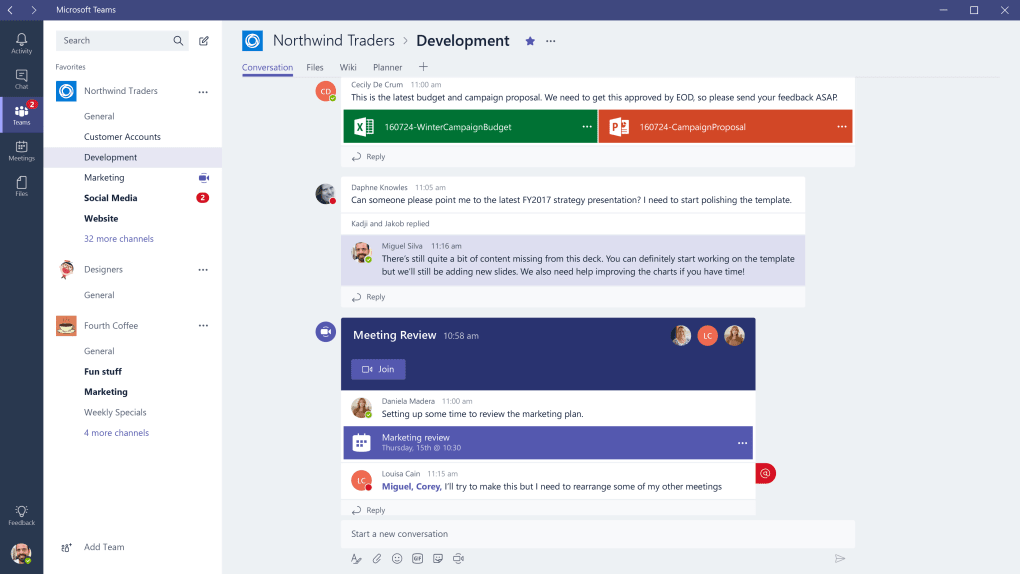
- Channel‑Based Collaboration: Create dedicated spaces for projects, departments, or topics, each with its own chat thread, file library, and integrated tabs.
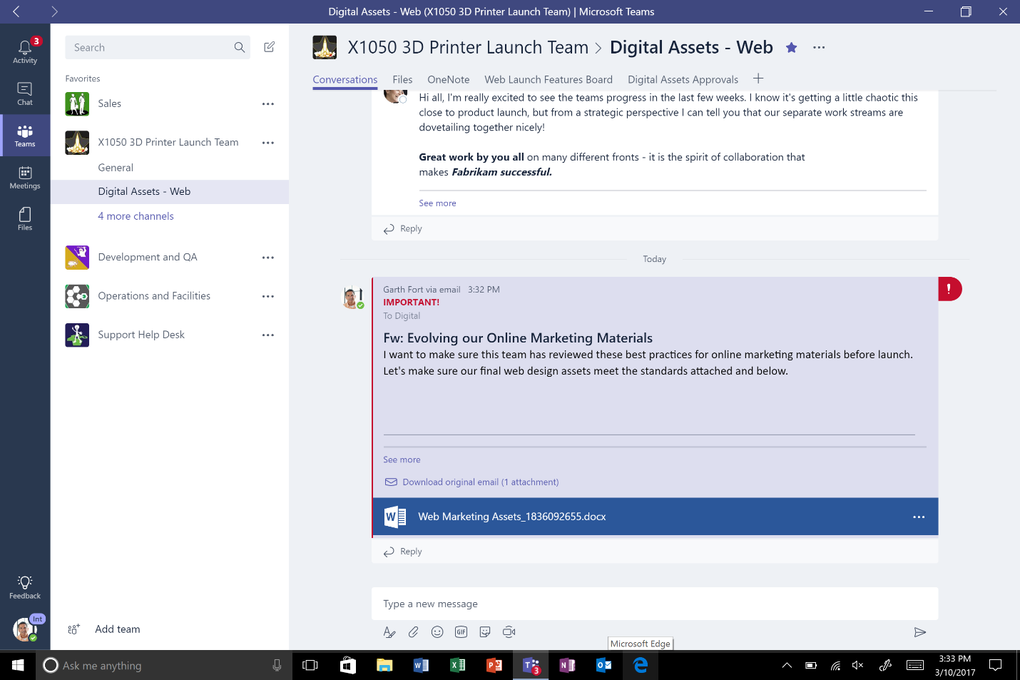
- Rich Messaging: Send text, emojis, GIFs, stickers, and inline images; @mentions alert specific colleagues; threaded replies keep conversations organized.
- Audio & Video Calls: One‑click voice or video calls, high‑definition streaming, background blur, virtual backgrounds, and live captions.
- Meetings & Webinars: Schedule meetings via the built‑in calendar, record sessions to OneDrive, host webinars for up to 1,000 attendees, and broadcast events to 10,000 viewers.
- File Sharing & Co‑Authoring: Store documents in Teams or OneDrive, edit Word, Excel, and PowerPoint files in real time, and track version history.
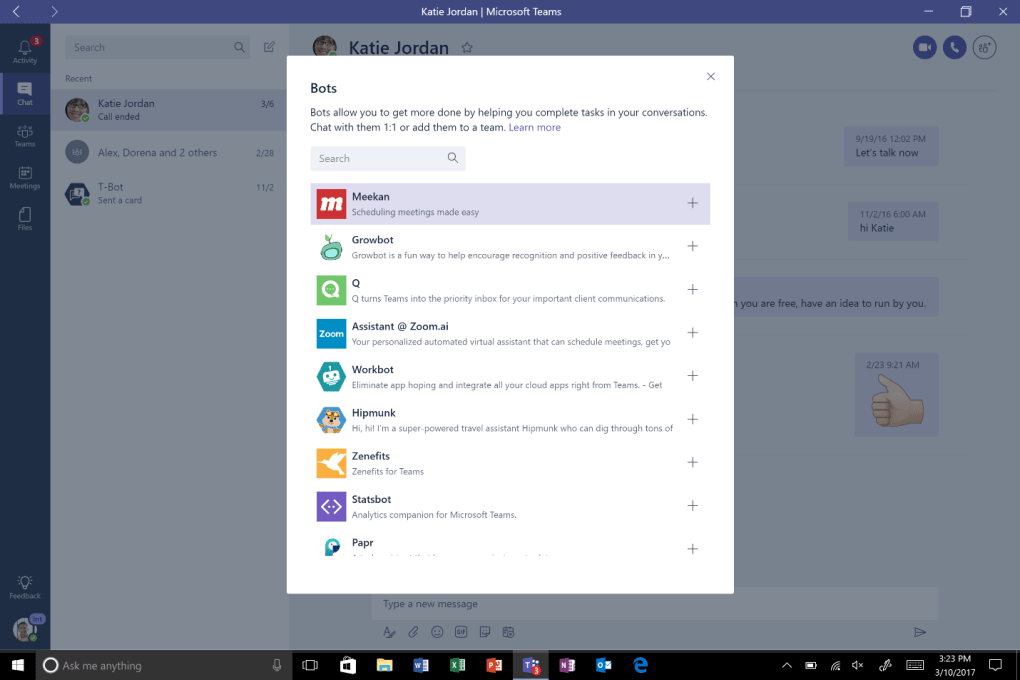
- Integrated Apps & Bots: Pin third‑party apps (Trello, Asana, GitHub) and use AI bots like Copilot for meeting summaries and task suggestions.
- Polls & Surveys: Quickly gather feedback with built‑in polling, Kahoot!, or Microsoft Forms integration.
- Security & Compliance: Multi‑factor authentication, data loss prevention, eDiscovery, and compliance with industry standards.
- AI Enhancements (Premium): Automatic transcript generation, AI‑generated meeting minutes, and branded meeting experiences.
Installation, Usage & Compatibility
Step‑by‑Step Installation
1. Visit the official Microsoft Teams download page for macOS.
2. Click “Download for Mac” to retrieve the .pkg installer.
3.
Open the file, follow the guided prompts, and allow the installer to add Teams to your Applications folder.
4. Launch Teams, sign in with your Microsoft 365 or personal Microsoft account, and grant permissions for microphone, camera, and notifications.
5. The first run walks you through a quick tutorial covering chat, meetings, and channel creation.
Everyday Usage Tips
After logging in, the left‑hand navigation bar houses Activity, Chat, Teams, Calendar, and Calls. Click Teams to view your groups, then open a Channel to start a conversation. Use the + Tab at the top of each channel to pin files, Planner boards, or third‑party apps. The Search bar at the top of the window supports natural language queries—type “files from last week” to instantly locate recent documents. Keyboard shortcuts (⌘ + E for search, ⌘ + 1–5 to switch panes) speed up navigation.
Compatibility
Microsoft Teams for Mac runs on macOS 10.15 (Catalina) and later. Minimum hardware requirements include a dual‑core processor, 4 GB RAM, and 1.5 GB of free storage. The app supports Retina displays (minimum 1200 × 800), any standard webcam, and built‑in or external microphones. For cross‑platform consistency, Teams also offers native clients for Windows 10/11, iOS 15+, Android 8+, as well as a web version that works in Chrome, Edge, and Safari.
Performance is optimized for modern Macs: the app leverages Apple’s Metal graphics API for smoother video rendering, and background sync is handled efficiently to minimize battery drain. Enterprise deployments can use Microsoft Endpoint Manager to push updates silently, ensuring that every user stays on the latest secure version.
Pros & Cons
What Users Love
- Deep integration with Microsoft 365 eliminates the need for separate file‑sharing services.
- Robust security features meet the compliance needs of regulated industries.
- AI‑driven meeting tools (Copilot, automatic transcription) boost productivity.
- Highly customizable channels, tabs, and third‑party app integrations.
- Free tier provides ample functionality for small teams and startups.
Areas for Improvement
- Interface can feel cluttered for newcomers; learning curve is steep.
- Occasional latency during large‑scale webinars on older hardware.
- Advanced features (branding, AI tools) require paid Microsoft 365 subscriptions.
- Limited offline capabilities compared with some competitors.
- Notification settings are granular but sometimes overwhelming to configure.
Microsoft Teams for Mac delivers a comprehensive, secure collaboration suite that feels native to the macOS environment. Its seamless Office integration, AI‑enhanced meeting tools, and flexible channel architecture make it a top choice for businesses seeking a unified communications platform. While the UI can be dense and some premium features sit behind a subscription, the overall value—especially for Microsoft‑centric organizations—is exceptional.
Frequently Asked Questions
Is Microsoft Teams free for macOS?
Yes, Teams offers a free tier that includes unlimited chat, audio/video calls, 2 GB of personal file storage, and up to 300 participants per meeting. Additional features like larger meeting capacity and advanced security require a Microsoft 365 subscription.
Can I join a Teams meeting without installing the app?
Absolutely. Meeting organizers can generate a web link that opens the meeting in a browser (Edge, Chrome, or Safari). The web client provides core functionality such as video, screen sharing, and chat, though some advanced features may require the desktop app.
How secure is data stored in Teams?
Teams encrypts data at rest and in transit using industry‑standard TLS and AES‑256 encryption. It complies with ISO 27001, SOC 2, GDPR, and HIPAA (when configured), making it suitable for regulated sectors.
Can I integrate third‑party apps like Trello or GitHub?
Yes. Teams supports a rich app store where you can add connectors, bots, and tabs for services such as Trello, Asana, GitHub, Zoom, and many more. These integrations appear as custom tabs within a channel for quick access.
What are the system requirements for the macOS version?
Minimum: macOS 10.15 (Catalina) or later, 2‑core CPU, 4 GB RAM, 1.5 GB free disk space, 1200 × 800 display, and a compatible webcam/microphone. For optimal performance, Microsoft recommends macOS 11 (Big Sur) or newer with 8 GB RAM.
Conclusion & Call to Action
Microsoft Teams for Mac stands out as a secure, feature‑rich collaboration hub that unifies chat, meetings, and file management under one roof. Its deep Microsoft 365 integration, AI‑enhanced productivity tools, and robust security make it an ideal choice for businesses, educators, and remote teams. While the UI may take a short learning curve and premium capabilities require a subscription, the free version already delivers a powerful set of tools that can replace multiple disjointed apps.
If you’re ready to streamline your team’s communication and boost productivity, download Microsoft Teams for Mac today. Install the app, sign in with your Microsoft account, and start creating channels that bring your projects to life.







